


Transitioning Monthly Donations - FAQ
If you recently received an email about transitioning your recurring donations to our new system, you may have questions about what steps to take and why. This page provides instructions and resources to help you feel confident about making the change.
On this page:
General Questions
-
Our new system provides several benefits, including the ability to place donations with digital wallets like PayPal and Google Pay, and a better interface for you to view and manage your donation schedule.
-
Please transition your donation before August 13, 2026. After this date, your current donation may be canceled automatically.
-
You can easily transition your donation by following the instructions below.
-
No. For your security, we cannot accept or transfer your payment information on your behalf. You must follow our instructions to manually set up your new donation and cancel your old one.
-
As long as you follow the instructions to cancel your old donation after setting up the new one, you will not receive duplicate charges.
If you accidentally forget to cancel your recurring donation in Squarespace, we can cancel it on your behalf and refund you the duplicate charge
-
Our new donation form includes an optional checkbox that allows you to cover the processing fees associated with your payment. If you select this, 100% of your chosen donation amount goes directly to Project 2029. You can choose to leave this box unchecked if you do not want to cover the charge.
-
Yes! Our new donation form still allows you to easily make one-time donations with your desired amount and payment method.
Step-by-Step Transition Instructions
Moving over your recurring donation consists of two major steps: setting up a donation in our new donation system and canceling your original donation.
Setting up Your New Donation
1. Visit our new donation form and select Give Monthly, then choose your desired donation amount.
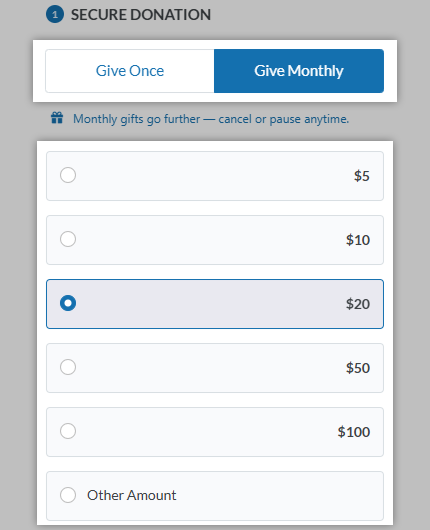
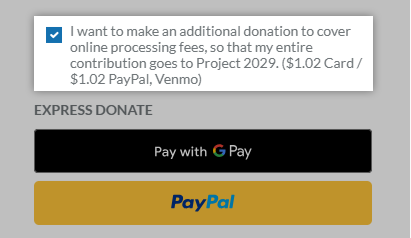
2. Choose your preferred payment method (Pay with Card, Google Pay, and PayPal). If you select Google Pay or PayPal, you will be prompted to sign in to your payment account and complete the donation from there.

Optional: You will see a checkbox asking if you want to make an additional donation to cover processing fees so Project 2029 receives 100% of your gift. Check or un-check the box to select your preferred option.
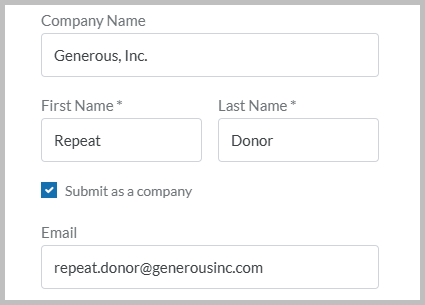
3. Enter your name and email address. If you are donating on behalf of a company, check the box next to Submit as a company, and enter your company’s name in the appropriate field.
4. In the Payment Details section, select whether you want to enter your credit card information manually or use Venmo to pay. If you select Venmo, you will be prompted to sign in to your payment account and complete the donation from there.
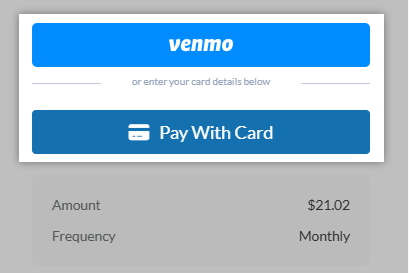
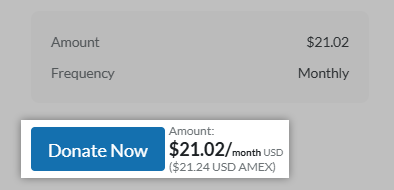
5. Enter your payment details and click Donate Now. You will receive a confirmation email, and your donation will process on this date each month moving forward.
Canceling Your Old Donation
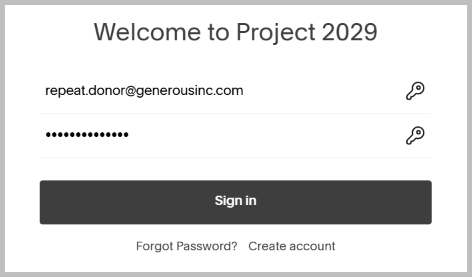
1. Log in to your Project 2029 donor account on our website. If you have not logged into your account before, click Forgot Password and enter the email address you originally used to make the donation in order to create a password for your account.
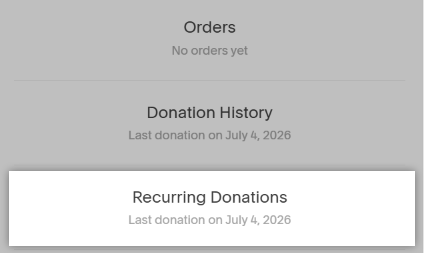
2. Click the Recurring Donations button in the Account sidebar.
3. Select your current donation, click Cancel Recurring Donation, and confirm your choice.
Managing Donations in your New Account
Once you have transitioned your recurring donation to our new system, you can sign in to your donor account. Click Having trouble signing in on the login page, and then enter the email address you used to make the donation to set your account password.
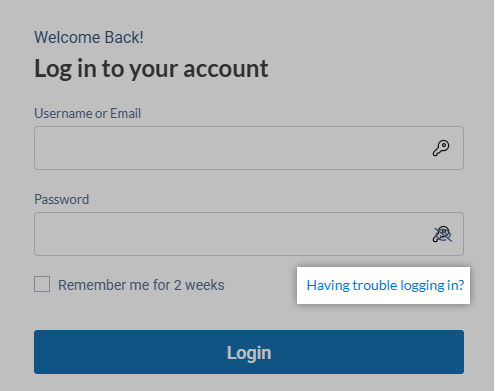
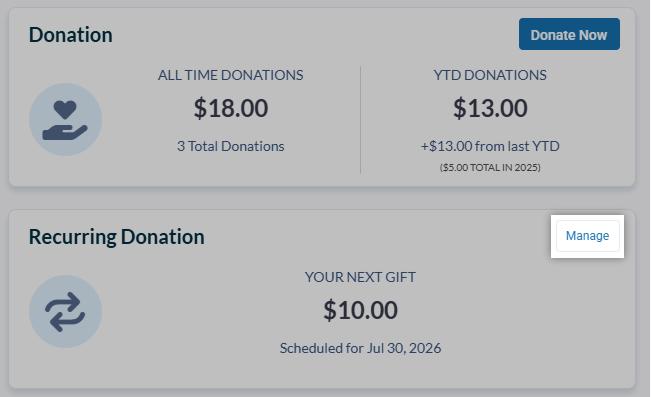
When you have created your password, return to the login page and enter your credentials. On the dashboard, you can see a breakdown of your donations, including recurring donations made before you transitioned. Click Manage to view your recurring donation schedule.
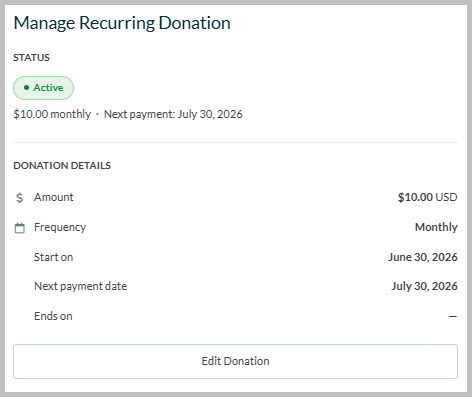
From this page, you can see when your next payment will occur, edit the recurring value, and change the payment method used for the donation. You can also temporarily pause or permanently cancel your donation.
Support and Troubleshooting
-
If you would like more information or are having issues migrating your donations, please contact us at this link for assistance.
-
This may indicate that you failed to cancel your original donation, or you may have accidentally created two recurring donations during initial setup.
Log in to your original donor account and confirm that the recurring donation is canceled, and check the new system. Then, log in to your new donor account to confirm that you do not have a duplicate recurring donation.
Once you have removed your duplicate donation, contact us so that we can refund the duplicate charge.
-
If you have not migrated your recurring donation by August 13th, your existing donation schedule may still be active as we disable our current payment platform.
If you want to prevent future charges before deciding whether to migrate your recurring donation, follow the cancellation instructions on this page.
-
This can occur for a few different reasons:
Your credit card information was incorrect.
Some of the billing address information is missing.
There was an issue with your card provider.
If you have confirmed that your information was entered correctly, check your bank statement to see if they have listed a transaction error. You can also make the donation with a different credit card, or use one of the digital wallet options, such as PayPal or Venmo.
If you are still having issues, contact us for assistance.